For poll guests
Answer a poll
Got a link or QR to a poll? Here's how it works.
Steps
A link or QR is all you need for a poll: no account, and your answers are anonymous.
MoreLess: Open the link or scan the QR
You don't need an account. We don't ask your name. The start of the poll tells you who sees the answers.
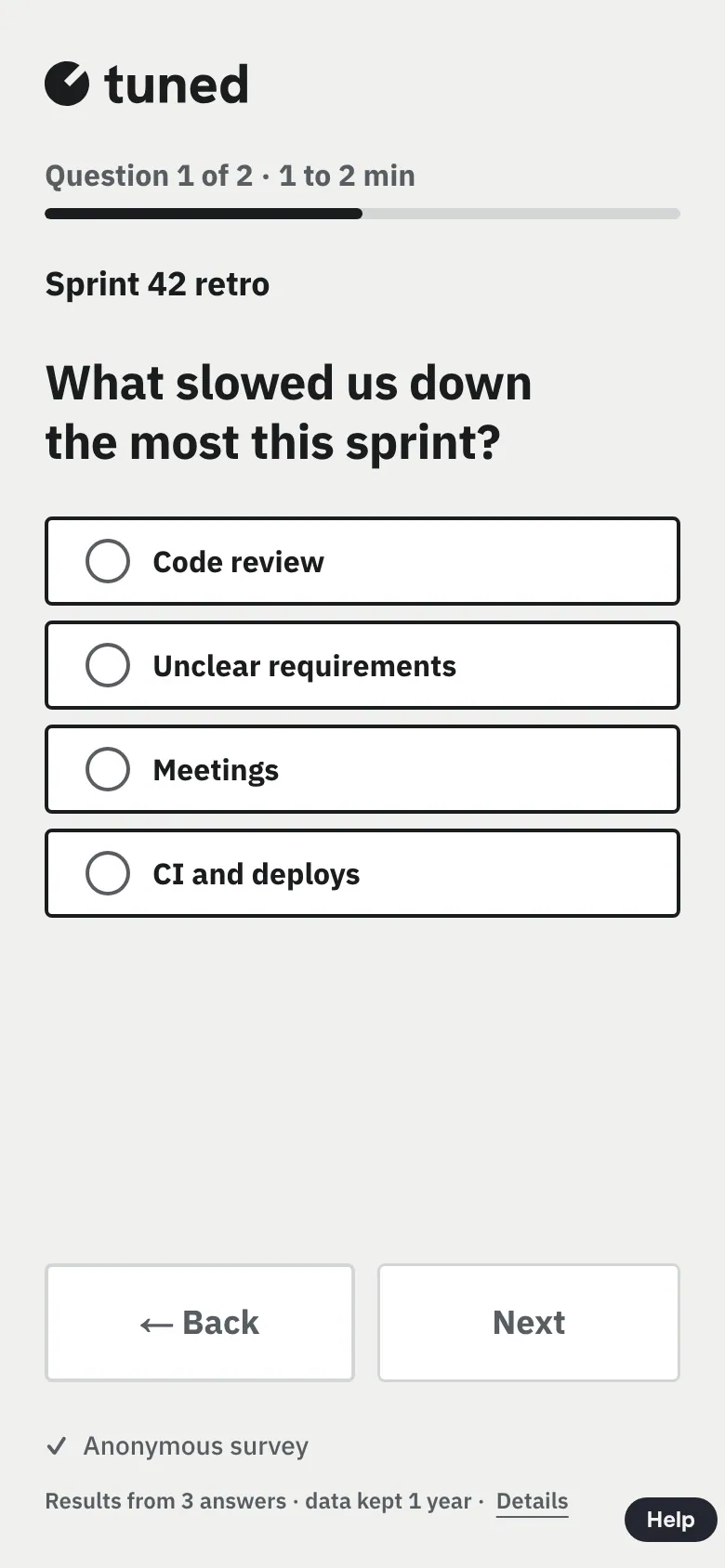
Tap an answer and the poll moves on by itself; “← Back” returns to the previous question, and text questions can be skipped.
MoreLess: Answer the questions
Tap an answer: it saves at once and the next question appears. On a text question type a few words and tap “Next”. At the top you see the poll’s stages and the question number. “← Back” returns to the previous question with your answer. You can skip text questions. You can stop at any time: the same link on the same device takes you back to the question where you stopped, with your earlier answers kept.
If the author shows results live, you'll see others' votes after your pick; "Next" moves on.
MoreLess: See how others answered
When the author shows the results to everyone live, after each pick you'll see how others answered (your vote left out). Only once enough people have answered that no one can be identified. "Next" takes you to the next question.
At the end you see the results, if the author allowed it and a few people have answered.
MoreLess: Done
The results of every question are one under another, each with your answer next to the others'. If the author allowed it, you'll see the results. We show results only once a few people have answered, so no one can be identified. In a company's poll the screen names the company instead of “the author”, and at the end there's only a “Change answers” link and, if the company asks for it, a “Leave a contact” row that opens a short form. In a test poll, the “Fill in again” button starts it over from the welcome screen with nothing marked; the new answers replace the earlier ones.