For companies
Waitlist
Small batches sell out in minutes? The waitlist remembers who has waited longest and gives them the first go at the next batch.
Steps
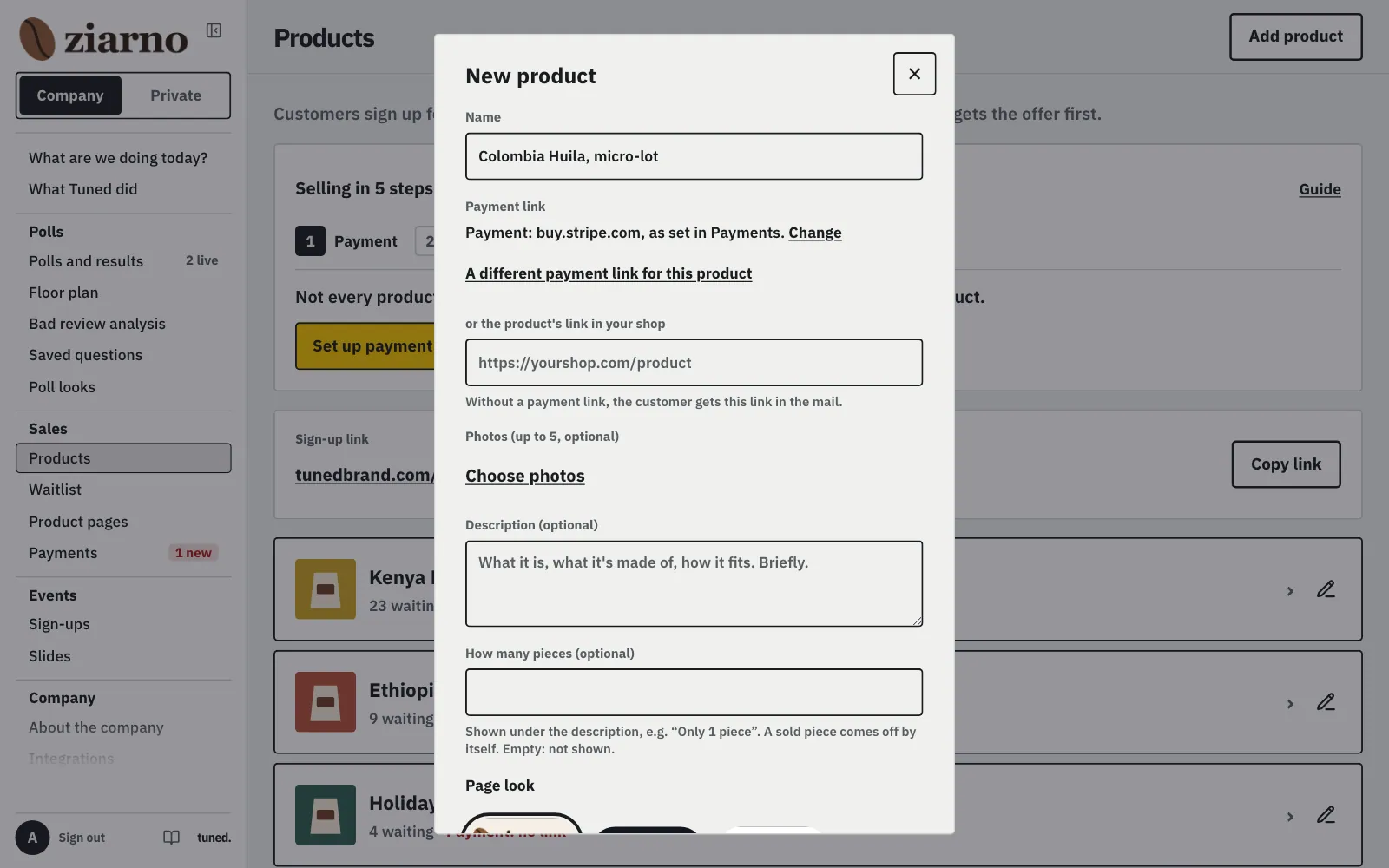
In the menu open “Products” and click “Add product”: a name and the product's link in your shop.
MoreLess: Add a product
Add a product that sells out fast: its name, the product's link in your shop (the customer gets this link in the “Your turn” email) and, if you like, up to 5 photos (the first is the main one, customers swipe to the rest), a short description and the number of pieces (“Only 1 piece” next to the name; a sold piece comes off by itself, and an offer from “New batch” holds a piece while it lasts). Customers see this on the sign-up page like a product page in a shop; the description shows in the language you write it in. With the first product you accept the data processing agreement: your customers' emails are yours, we only store and send them. Later you can change everything with the pencil by the product in the list or “Edit product” on its page: add, remove or reorder photos with the arrows, and “Close-up” on a photo cuts a square with a detail (move the frame, resize it by its corner or with two fingers) and adds it as another photo. There you can write the description in Polish and in English. To put away a sold out or mistaken product, use “Hide product” on its page: it leaves the queue page, the waitlist stays, and “Show product” brings it back.
Click “Copy link” and paste it in your shop or a reel: the customer picks a product and leaves an email.
MoreLess: Give customers the sign-up link
The sign-up page wears your brand's look: the product list wears the company's default template from “Poll looks”, and each product can have its own (when you add it, or with “Change” on the “Page look” line of the product, and all of them at once under “Product pages”). The customer confirms the email with the link we send; only then are they in the queue and see their place. One email holds one place per product. “Products” shows how many wait for each. You pick the layout when adding a product or in the same sheet as the look: photos beside, big gallery, close-ups, card or story. “Product page layout” under the shop link sets the default for every product without its own.
In the poll editor turn on the “Join the waiting list” button: guests sign up right after answering.
MoreLess: Add the waitlist to the end of a poll
The setting is in the “What guests see” step, under “At the end”: click “Turn on” next to it. It shows only for a company with a waitlist. If a guest picked an answer named after one of your products, the list opens on that product.
Open a product and click “Make an Instagram reel”: a reel from the product's photos that ends with a link and QR code to your list.
MoreLess: Make an Instagram reel
Pick a style (Calm, Bold, Framed) and click “Record the reel”: the browser records it in a few seconds, in the product's template look (colours and font). On a phone “Share” opens Instagram; on a computer “Download the reel” saves the file. “Download a 1080×1350 post” gives a matching image for a regular post. The reel is 9:16 and at most 15 seconds; it shows the name, one sentence from the description and “Coming soon” or how many are left. Nothing goes to our server.
Make an Instagram reel
Open a product and click “Make an Instagram reel”: a reel from the product's photos that ends with a link and QR code to your list.
Open the product, click “Send an offer”, type how many items and the time to buy (48 hours by default).
MoreLess: Click “Send an offer”
The discount code is optional; everyone in this batch gets it. “Show who gets it” lists the longest-waiting people, and “Send to…” emails them “Your turn” with a link to your shop. In the last day, a customer who hasn't bought yet gets a “Not much time left” reminder. We don't hold stock in your shop.
The customer clicks “Already bought” and leaves the queue; “Download list” downloads the list with emails.
MoreLess: See who bought
Product queues are under “Waitlist”. A product's queue shows each person's place, email, since when they wait and their state: waiting, has an offer, bought. Whoever doesn't buy in time keeps their place. After two missed batches they move to the end, so the queue doesn't stall.