For companies
How to run a poll live
Guests answer the question you open. Step by step: what you see and what a guest's phone shows.
Steps
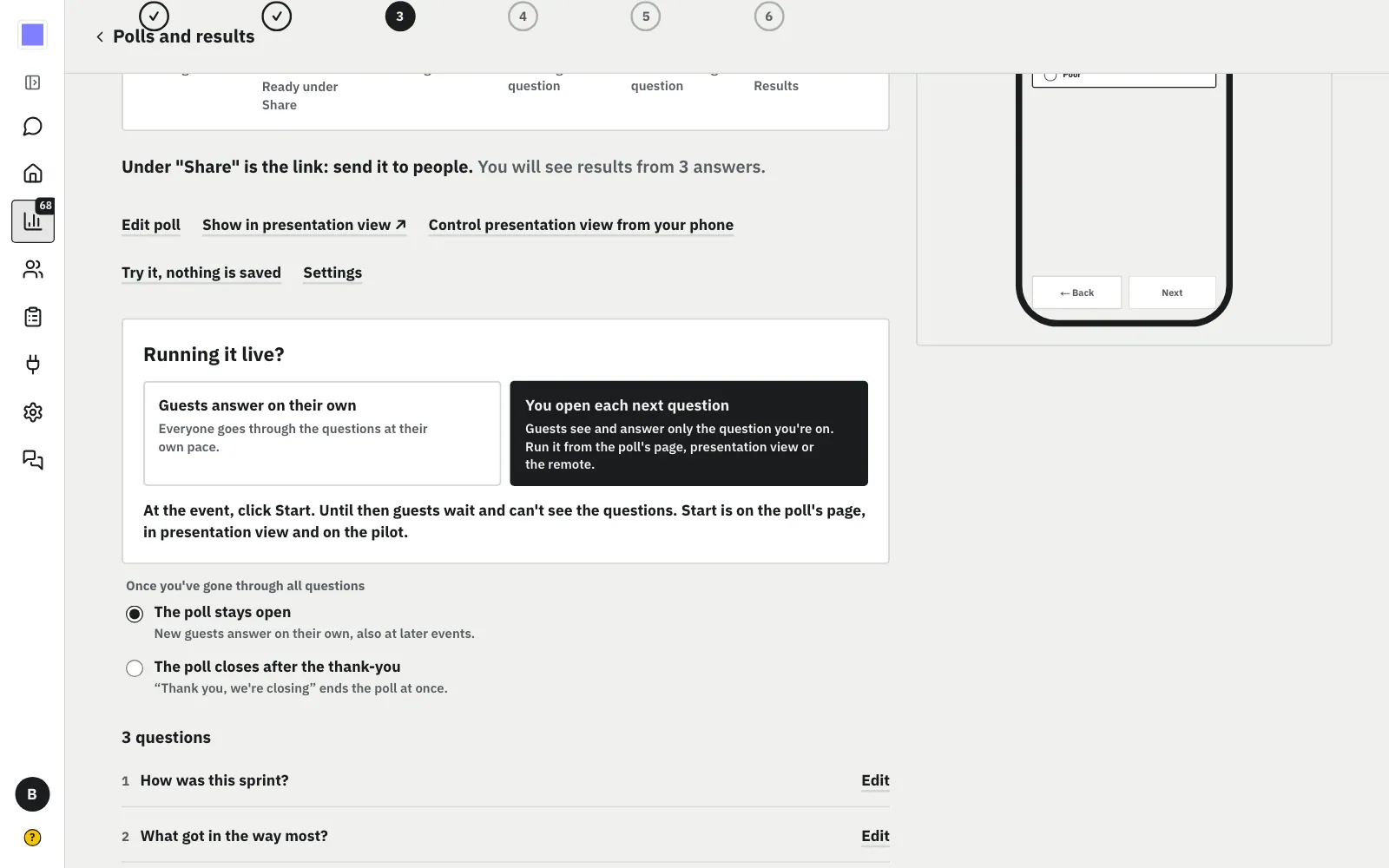
On the poll's page, under “Running it live?”, choose “You open each next question”.
MoreLess: Choose “You open each next question”
From now on guests wait for your Start and see only the question you are on. Later questions aren't even on their phones until you open them.
Click “Results”, then “Show in presentation view”. It's the poll on a full screen, in a new tab.
MoreLess: Open the presentation view
Drag this tab to a TV or a projector, or share your screen. You don't have to use it: you can run the whole poll from the poll's page too.
The QR code is in the presentation view. Guests scan it with their phones and wait: they can't see the questions yet.
MoreLess: Show the QR code
Under the code there is also an address for those who prefer to type it. A guest doesn't sign in or install anything.
You see
Guest's phone
The screen shows how many people opened the link. After a minute a guest reads that the organizer has to click Start.
MoreLess: Guests wait for you
A guest's phone first says “The host will start soon.” After 60 seconds: “The organizer has to click Start. Stay here, the questions will appear by themselves.” Guests don't need to refresh anything.
You see
Guest's phone
“Start” is on the poll's page, in the presentation view and on the remote. One click in one place is enough.
MoreLess: Click “Start”
Within a few seconds every phone shows the first question by itself, and the presentation view moves to it with the guests.
You see
Guest's phone
After answering, a guest waits. When you click “Next question”, their phone shows the next one by itself.
MoreLess: Click “Next question”
You can go back with “Previous question”. In the presentation view “Next” does the same. Answers already sent stay.
You see
Guest's phone
On the last question the button turns into “Finish the pass”. After it all questions are open to everyone.
MoreLess: Click “Finish the pass”
Whoever answered everything sees the thank-you a few seconds later. Latecomers answer by themselves, at their own pace. “Thank you, we're closing” closes the poll.
You see
Guest's phone
The results are under “Results”. They show once as many people answered as you set in the poll's privacy.
MoreLess: See the results
They work as in a poll without a host: percentages at each answer, a filter by answer and an export. A guest sees the thank-you and can change their answers.
You see
Guest's phone
Click “Run it from your phone”, then “Next” and “Show the code”. Scan the code or type the 6 digits at /pilot.
MoreLess: Remote: connect your phone
No sign-in. The code works once and for a short time. Don't show it to guests in the presentation view: whoever has it steers the poll.
Your phone has the same “Start” as the computer. You can run the poll from the room, with no laptop in your hands.
MoreLess: Remote: click “Start”
“Start” on the remote works as on the poll's page: guests get the first question.
You see
Guest's phone
“Next” opens the next question for guests and the presentation view. On the last question “Finish the pass” appears.
MoreLess: Remote: click “Next”
The remote also shows how many people have answered. The phone's screen stays on while the remote is open.
You see
Guest's phone