For companies
Presenting slides (Pilot)
Slides from Google Slides, a PDF or photos, moved from your phone, with polls in between.
Steps
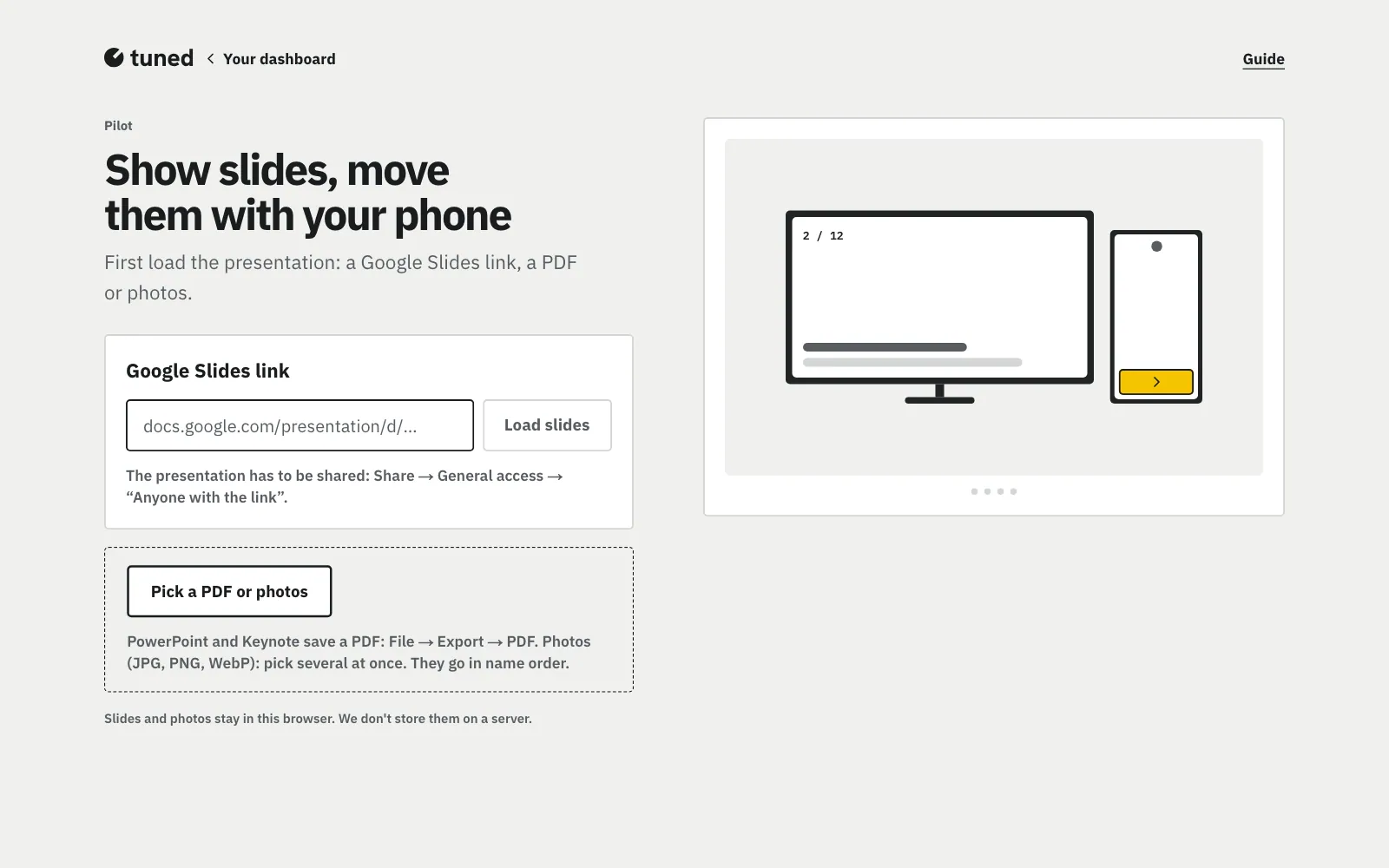
On the computer at the projector, open /slides and paste a Google Slides link, or pick a PDF or photos.
MoreLess: Load your slides
Open /slides on the computer connected to the projector (in the company panel: “Slides” in the menu). Paste a Google Slides link. The presentation has to be shared with “Anyone with the link”. Using PowerPoint or Keynote? File → Export → PDF and upload that file. Photos (JPG, PNG, WebP): pick several at once. They go in name order. The files stay in your browser. No account needed.
Scan the QR code with your phone to make it your remote, and keep the code away from the room.
MoreLess: Scan the code with your phone
Next to the preview there's a QR code. Scan it with your phone's camera: the phone becomes your remote, no sign-in. Camera not working? There are 6 digits under the QR. Open /pilot on the phone and type them. A code works for 10 minutes and once; a new one shows up after a phone connects. Don't show the codes to the room; “New code” disconnects every phone.
“Show now” puts a poll after the current slide, and “+” in the “Running order” strip puts it where you pick.
MoreLess: Put polls between slides
When signed in you see your live polls, including the current round of recurring polls. “+ New poll” opens the editor in a new tab. Once it's published, come back to Pilot and the poll is on the list. “Show now” puts a poll right after the current slide, and “+” in the running order puts it wherever you like. Each question of the poll is its own step. Have an active brand (“Your brand”)? The poll screen shows your company's logo instead of Tuned's. One poll for several talks or rooms? Type a “Talk tag” (e.g. room-b-panel) before you add the poll, or tap one offered (e.g. saved in the poll): the QR code on screen carries it, and the results on screen and in the panel (“Place”) show only that tag's answers.
Click “Present full screen”; a regular presentation clicker works too.
MoreLess: Present
Click “Present full screen”. The keyboard and a regular presentation clicker work too.
Swipe through slides, and “Launch a poll now” starts a poll whenever you like.
MoreLess: Steer from your phone
Swipe the slide or tap “Next”. You see the next slide, thumbnails of all of them and “Launch a poll now”. On a poll you decide when the room sees the results.
Turn on “QR code on screen”: whoever has a question scans it and asks to speak, and you give the floor with one tap.
MoreLess: Give someone in the room the floor
In the “Room microphone” card, turn on “QR code on screen”. Someone in the room scans the code, types their name and taps “I'd like to speak”. On the pilot and on the computer you see the queue with names. Tap “Give the floor” and their voice plays on the computer's speakers. They talk into their phone or the Bluetooth headphones paired with it, without getting up. You can mute and end a turn, and “Talk from this phone” turns the pilot into your own microphone. It works best with headphones on and away from the speakers. Then nothing squeals. If it does squeal or echo, the computer turns the speaker down by itself and tells you. Nothing is recorded.