For companies
Share a poll
A ready invite, a link, a QR code or an A4 poster to print.
Steps
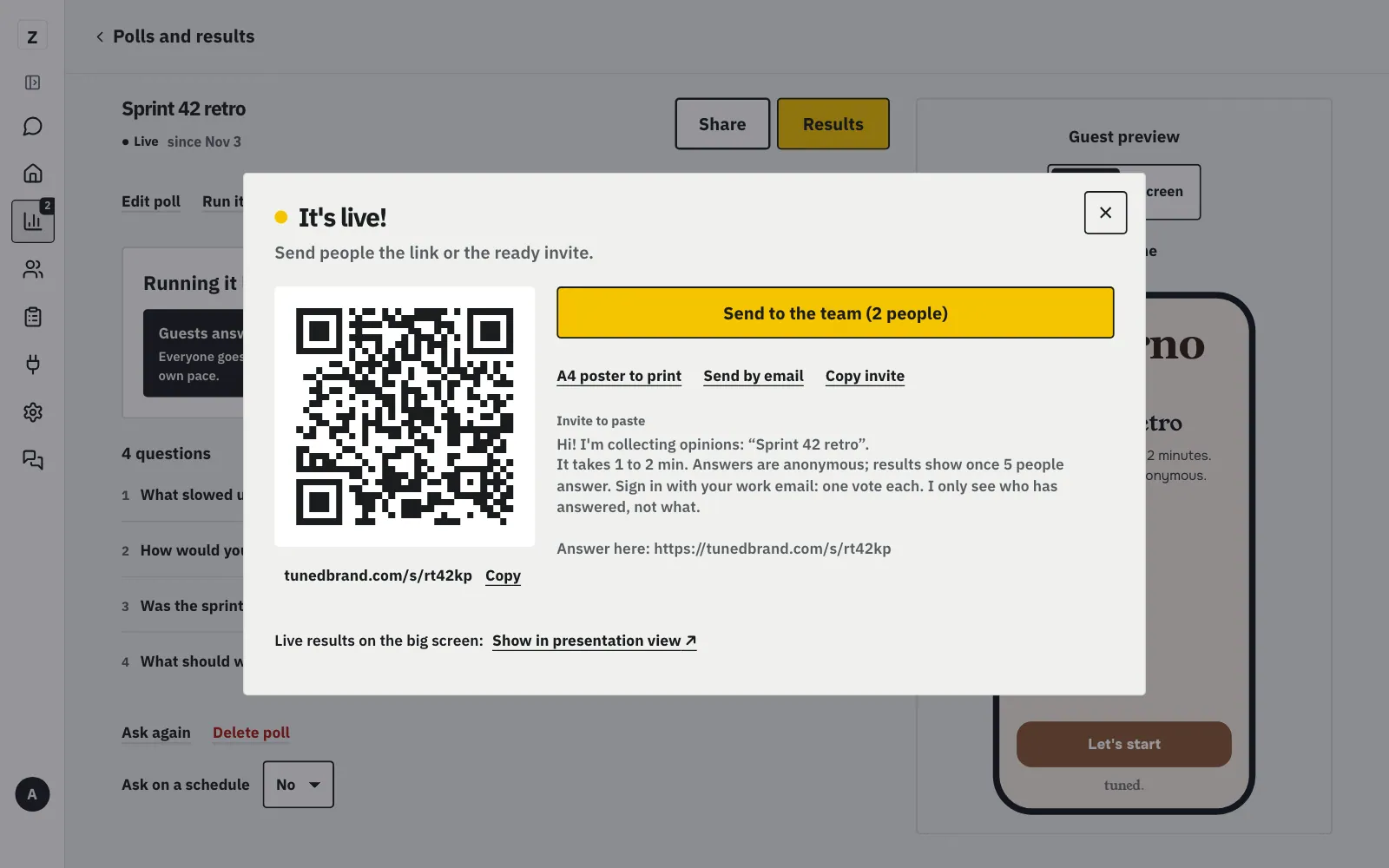
In the “It's live!” window, tap “Copy invite” or “Send by email”; the invite is ready.
MoreLess: Right after publishing
The “It's live!” window opens by itself. It has the link, the QR code and an invite with the title, how long it takes and the anonymity promise. In a team poll the invite also says to sign in with a work email, and that you only see who has answered, not what. Tap “Copy invite” and paste it in Slack or Teams, or tap “Send by email”. A poll for customers (anyone with the link) has the main “Download QR” button next to the code, with the poster to print beside it.
Scan the QR code with your phone, or close the window: the poll's page shows it as your guests see it.
MoreLess: See it as your guests do
On the poll's page the preview walks through the welcome, the questions and the thank-you, and the “Phone / Screen” switch shows both screens. An answer sent after scanning the code, yours too, goes into the results.
On your phone, tap “Share” and send the invite by WhatsApp, text message or email.
MoreLess: On your phone
After “Publish” on your phone, the “It's live!” window slides up from the bottom. “Share” opens your phone's share menu with the ready invite. Pick WhatsApp, Messenger, a text message or email. If your phone has no such menu, copy it with “Copy invite”. The link, QR code and invite also stay on the poll's page.
Click “Share” to copy the link, show the QR code or get the poster.
MoreLess: Share: link, QR and poster
One window has the link to copy, the QR code to show on screen or download (“Download QR”, in a poll for customers) and the A4 poster to print.
Download an A4 poster with your logo, the poll title and the QR code.
MoreLess: Download the poster
The poster has your logo, the poll title and the QR code.