For companiesOn a computer
On a computerWhat Tuned did
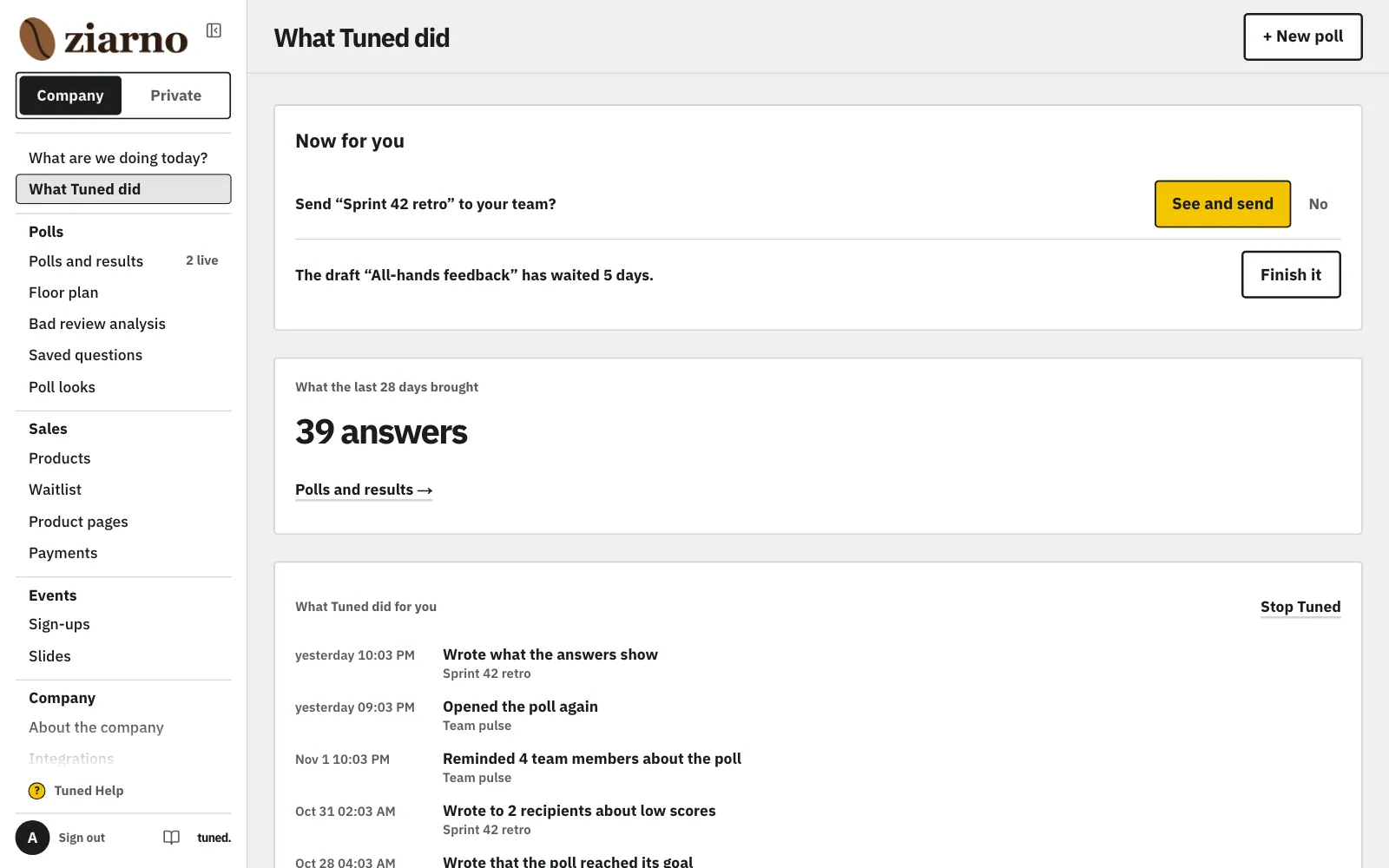
The panel opens on “What are we doing today?”; “What Tuned did” is one click away, in the menu: what Tuned did on its own, what came of it and what waits for your yes. Poll results below.
Steps
Everything's in the menu on the left: each row says what you do there, and small names above them split them into groups.
MoreLess: The menu on the left
At the very top is one row with the company's logo and name (this panel); click it and the list holds “Private” (your account) and each of your companies. Your avatar is at the very bottom of the menu: your name and e-mail stay off the screen, in the avatar's menu, with your account settings and the theme. Below it: What are we doing today?, What Tuned did, Polls and results, Floor plan (restaurants), Bad review analysis, Saved questions and Poll looks. A company that sells also has Products, Waitlist, Product pages and Payments, and one that runs meetings has Sign-ups and Slides. Then Integrations, then About the company (name, logo and contact), Team and Settings, and last Write to us. At the bottom of the menu is “Tuned Help”, and under it your avatar, Sign out, the book icon (Guide) and the small tuned. logo (the home page). When you open something deeper, such as one poll, the menu folds to icons only (hover one for its name), so the poll gets the room; the icon at the top of the menu shows it whole and folds it again. After you sign in, the panel opens by itself; later, open it from the home page (the “Your dashboard” link at the top). “Polls and results” holds the company’s polls; “My polls” in your account holds your private ones.
At the top “Now for you”: at most 3 things, a sentence and a button.
MoreLess: Now for you
“Now for you” starts with what waits for your yes, e.g. whether to repeat a poll, then a round to start, a low result, a poll with no answers for a week, an old draft. With nothing waiting it says “Nothing is waiting.”. Below: the answers of 28 days, the change since last week and a link to “Polls and results”, where each poll's result is.
Below, the list of Tuned's actions.
MoreLess: What Tuned did for you
“What Tuned did for you” shows the actions of the last 30 days. “Stop Tuned's actions” beside the list pauses everything Tuned does on its own; what you click still works.
Click “+ New poll” in the top bar.
MoreLess: New poll
Slides with polls between them are in the menu, under “Slides”. A new company with no polls has a button to the chat here, and once a poll is live with no answers yet: its QR code, link and preview.
Click “Sign out” at the very bottom of the menu on the left.
MoreLess: Signing out
“Sign out” is at the very bottom of the menu on the left, next to your avatar, away from the company switch.