For companiesOn a computer
On a computerA “Team only” poll with a goal
Only company accounts answer, each once, and the results arrive at the goal.
Steps
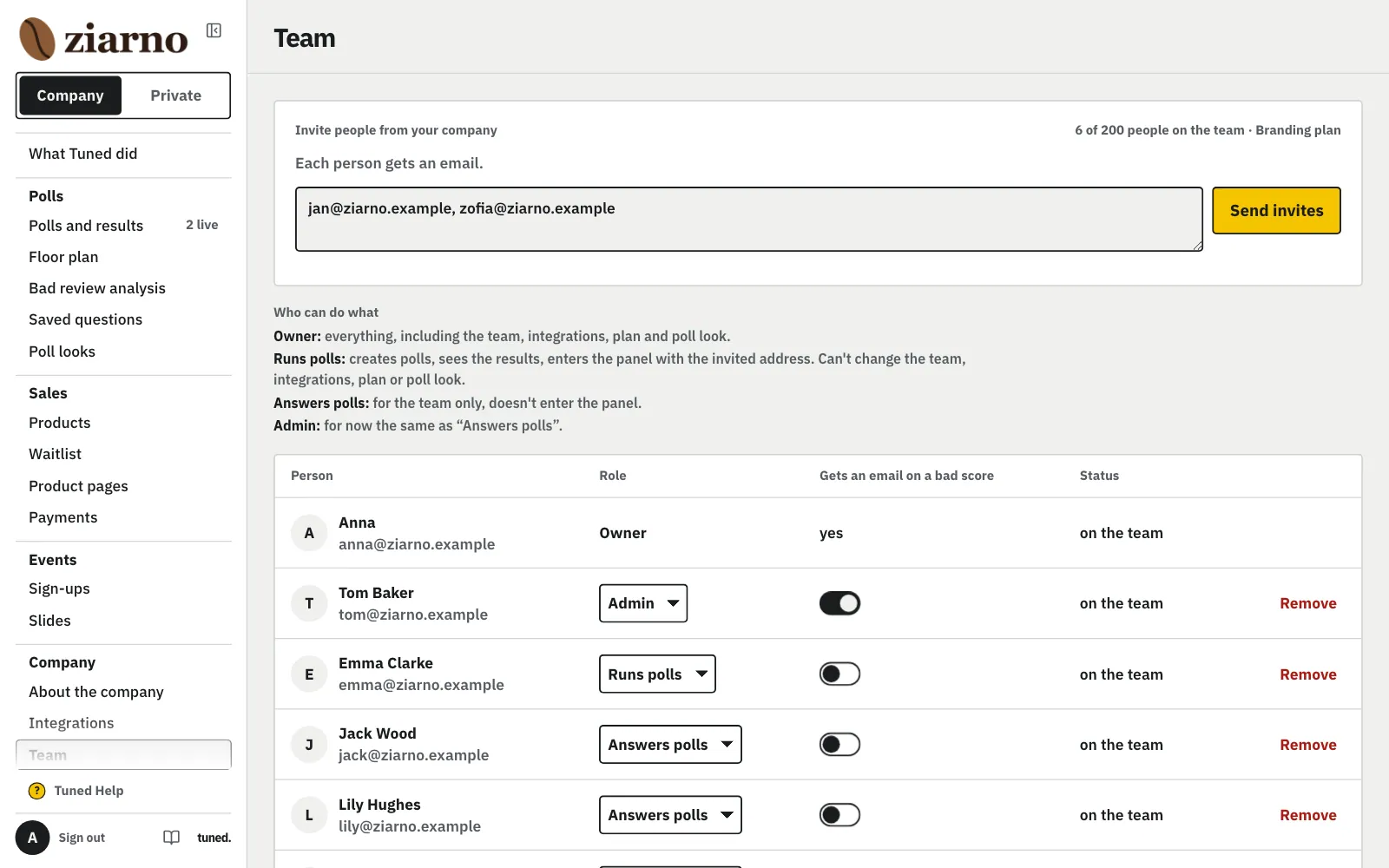
Paste addresses in the menu, under “Team”, so people can answer team polls.
MoreLess: Invite your team
In the menu open “Team” and paste addresses and everyone gets an invite by email.
Above the address field you can check whether more people fit in the company's plan.
MoreLess: Check the plan limit
Above the address field you see the company's plan and how many people are in the team, invites included. Free and Branding hold 200 people, Corporation has no limit. When the team is full, remove someone or write to us to change the plan.
In the “Role” column pick “Runs polls” for the person who should create and run the company's polls.
MoreLess: Give someone “Runs polls”
They get an email with a link. Once signed in with the invited address, they see only the company's polls in the panel: create, edit and run them and read the results. They can't change the team, integrations, plan or brand look.
Choose “… team only” (your company name comes first) so only signed-in team members see the questions and results.
MoreLess: Pick “Team only”
In the wizard's “Who answers” step, choose who answers. Only these people see the questions and results, once signed in. Such a poll has no customer options: no “Places” step, review link, contact or tablet mode. When the team answers at a venue or at set places, “Add a place” under the choice brings the “Places” step back. With fewer people than it takes to show results, the wizard warns that the results won't show.
Click “Set a goal” and pick a number of answers at least as high as the anonymity threshold.
MoreLess: Click “Set a goal”
Pick the number of answers, no lower than the number of people results show from. You can change the goal after publishing too: in the poll's “Settings”, click “Change” (or “Set a goal”) next to “Goal”. The new goal has to be above the answers so far, and the email and Slack go out when the poll reaches it. Who answers stays as published.
Turn on what happens at the goal: results by email, Slack or closing the poll.
MoreLess: Choose what happens at the goal
Turn on results by email, Slack and auto-close with the switches. Email goes only to your address, your team or addresses in your company's domain.
Click “Remind … people” under the list to nudge those who haven't answered yet; their answers stay hidden.
MoreLess: See who has answered
The poll panel shows only whether someone answered, and “Remind … people” sends a reminder to those still waiting.