For companies
Create a poll
From a goal the AI turns into questions, a ready set or your own questions. Questions, settings, publishing.
Steps
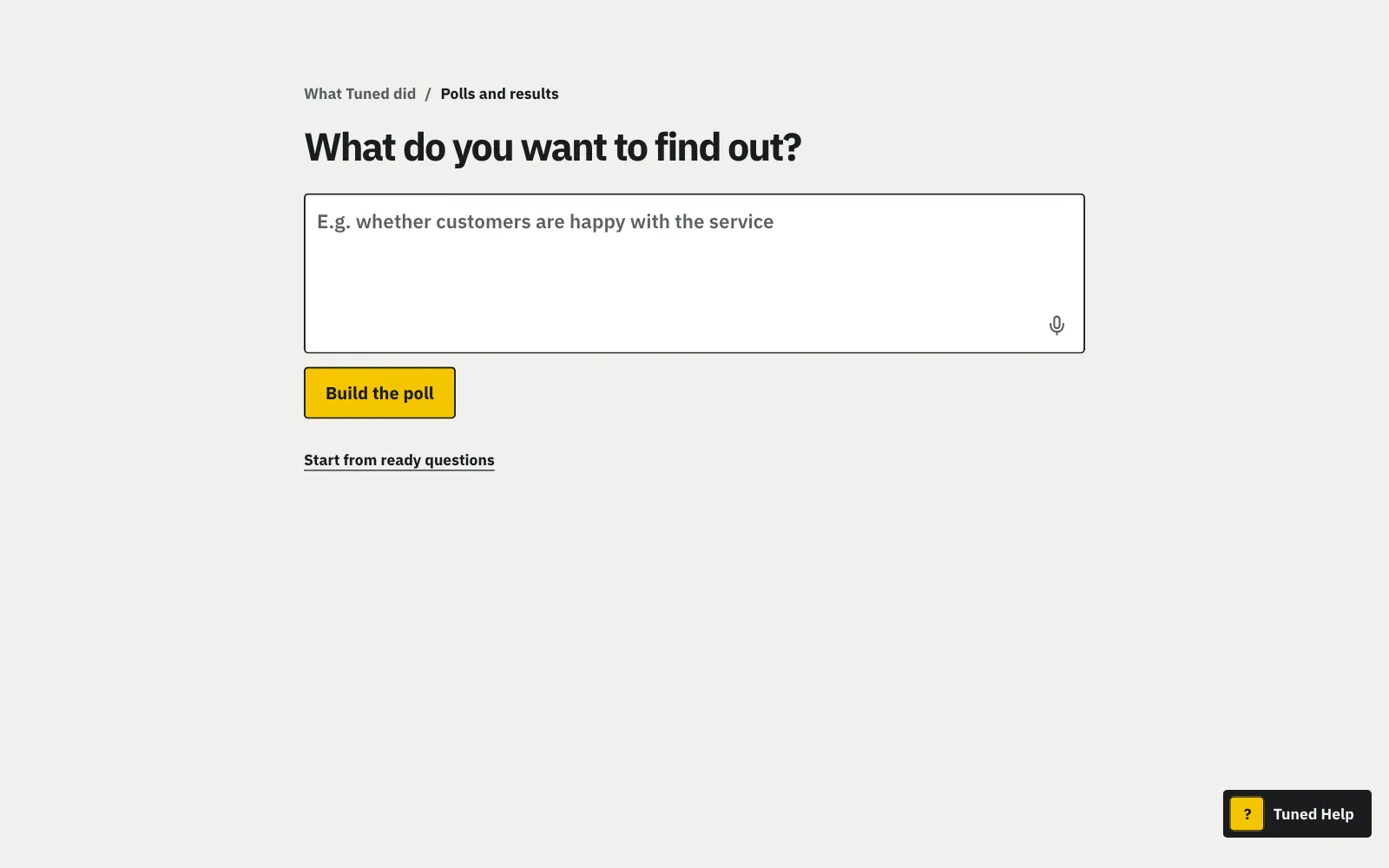
The screen asks “What are we doing today?”. Type the company's problem and click “Send”, or click “New poll”.
MoreLess: Answer the first question
E.g. “whether residents are happy with the property manager”. The AI leads the chat, one short question at a time: click an answer or use your own words. It doesn't ask what the company wrote about itself. “Change my last answer” goes back one turn, and reloading the page loses nothing. The AI doesn't ask about health, weight, illnesses or medicines.
The “Change without asking” switch holds for one task. Off: the chat asks before every change.
MoreLess: Decide how much the chat does on its own
Write for example “show results from 50 people” or “keep it for 30 days”. The chat says what was and what is, and “Undo this change” brings the old value back. Publishing, sending, closing and deleting always wait for your yes, and on a published poll so do the look and the questions. On a published poll the number of people results show from, visibility and retention can only get stricter and that can't be undone, so the chat says so before the change.
Write e.g. “fit the look to my restaurant”, “darker” or “the colour from my logo”.
MoreLess: Change a poll's look in one sentence
The chat picks a ready style or changes the colour, background, font, logo position, welcome and thank-you. It shows the guest's screens before anything is saved: click “Yes, use this look”, and “Undo this change” goes back to the previous one. A published poll always asks, because guests see the change at once. A template other polls use stays as it is: the new look goes on this poll only, and the template studio lists it as “Look from chat”. The company account's owner changes colour, background, font and logo; a host can change the welcome and thank-you text.
On the “Your poll is ready” card: the link, an event, a venue or an address list. For an event or a venue you get a QR code and poster.
MoreLess: Say how the poll should reach people
Address list: you paste the addresses, and the card shows the email that goes under your company's name. “I have their consent. Publish and send” publishes the poll and starts the sending, each address once, with an unsubscribe link. That click declares these people agreed to the company's emails and accepts the data processing agreement. The addresses never reach the AI. Sending to a list isn't on for every company yet: where it isn't, the chat offers a link to send.
The AI writes the questions and picks the settings. Nobody sees the poll until you click “Publish”.
MoreLess: Check the finished poll and publish
“The same questions for everyone” fits an event, a talk, a panel and a webinar. “Questions that depend on the answers” fits customer opinions and putting a bad experience right. “Switch to…” rewrites the poll the other way. Each setting has a reason and “Change”, which opens that place in the editor. “Publish” publishes at once, with no walk through the editor.
Under the field is “Start from ready questions”: logo, ready sets, an earlier poll, saved or your own questions, a dynamic poll.
MoreLess: Or pick another start
The goals follow the kind of business in Settings, e.g. “Whether guests enjoyed their visit” or “Whether a job was done well”. Under the goals are the other ways: “Copy an earlier poll” (once you have polls: the same questions and settings as a new draft), “All ready sets” (For your business, For customers, For a team), “From saved questions” and “Write my own questions”. Conditions, several places with QR codes and repeating come later, in the editor. You can paste a whole list into a blank question: each line becomes a question, and we pick its kind from the words (a rating is a scale, a recommendation is NPS, “Do you…” is Yes / No, answers in brackets are a choice). You change it with one click.
Type a title; no need to save, the poll saves itself.
MoreLess: Give it a title
Finished questions save themselves; empty and unfinished ones wait until you complete them. Without internet your changes stay on this device and save when it comes back. A published poll saves only when all its questions are complete.
Add questions from the “Question list” above the question and drag them to change the order.
MoreLess: Add questions
Above the question the ‹ › arrows go to the previous and next question, and “Question list” opens on the left with the order of the questions, “Add question”, saved questions and “Write with AI”. Drag a question in the list or use the ↑ / ↓ arrows under the picked question in the list to change the order; “Duplicate” and “Delete” are there too. Leaving with unsaved changes, “Polls” first says what happens; a second click leaves. Drag the line before the preview to change its width. Paste a whole list into a question's field at once: one line, one question. From a sheet, paste the question with its answers in the next cells (or “1-5” for a scale).
For each question pick a choice, a ranking, a grid, a 1 to 5 scale or text.
MoreLess: Pick the answer type
A choice, a 1 to 5 scale or text. With a choice, "Several answers allowed" lets the guest pick more than one. In a ranking the guest puts all answers in order, most important first, and the results show the average place. In a grid you write 2 to 10 statements, and the guest picks 1 (Strongly disagree) to 5 (Strongly agree) for each; they may skip one. With text, "Answer required" takes away the guest's "Skip": they move on only after typing an answer. Under "Answer" pick "Number" or "Date" when you want just a number (an age, a head count) or a day from the calendar: the guest can't send anything else, and the results show the average, median and range, or the first and last day. Under the scale the guest sees what 1 and 5 mean; if you write both ends into the question, e.g. "(1 = bad, 5 = great)", they see them only once. With a scale or NPS, "Ask for an example after a low score" shows the guest a field for an example after a 1 or 2 (0 to 6 in NPS), which they can skip; you see the examples in the results under the question.
Under the question click “Improve with AI”, type a note and click “Improve”, then “Replace” or “Keep mine”.
MoreLess: Improve a question with AI
Under the question there is one button, “Improve with AI”. A click opens a field for the question's aim or a note, e.g. “too long, shorten it” (it can stay empty), and “Improve” sends the question to the AI. The suggestion shows below: “Replace” puts it in, “Keep mine” leaves your question. “Review the whole poll with AI” is in the “Question list” and points out repeated or unclear questions. “Write with AI” under the question list adds new ones.
Under the answer type click "Show only when…", pick an earlier question and its answers.
MoreLess: Show a question to some people only
Only people who gave one of the picked answers to the earlier question (a choice, a scale or NPS) see this question; with NPS you pick detractors, passives or promoters. Everyone else goes straight on, and the question count leaves it out. In the question list such a question says "Condition: question 2". If you remove that question or move it below, the condition goes and everyone sees the question; the editor says so in one line. Above the question and the preview it says "only if 1: …". "Remove condition" removes it. In the results such a question says who it was for, and percentages count the people who answered it.
Show a question to some people only
Under the answer type click "Show only when…", pick an earlier question and its answers.
A poll over 15 questions gets a bar over the questions with the time to fill it in and “Shorten with AI”.
MoreLess: Shorten it together
A shorter poll means more people finish it. “Shorten with AI” merges similar questions, drops repeats and turns a series of yes/no questions into one question with a list. The proposal shows which old questions each new one comes from and which are left out. “Replace” first saves the poll as it is as a copy, so the original stays on the poll list. On a dietitian's account the health questions may stay, but the AI merges them too, e.g. illnesses and allergies into one question with a list. “Leave it” hides the bar. You can always publish, a long poll too. When people drop off mid-poll, “Funnel” has “Shorten from question N”: it opens a copy where the AI shortens only questions N to the end, and when you publish the copy you can close the previous poll (its answers stay).
Shorten it together
A poll over 15 questions gets a bar over the questions with the time to fill it in and “Shorten with AI”.
Before publishing, check the question on a phone, in presentation view and on the poster.
MoreLess: See what a guest will see
Preview on a phone, in presentation view and on the poster. On a computer it sits on the right, on a phone under the step's settings. On the “What guests see” step it shows the guest's first screen (the welcome, or straight the first question), and while you change something under “At the end”, the thank-you with “Leave a review”.
Pick online, several places or your venue, and every place gets its own QR code.
MoreLess: Choose where answers come from
The “Places” step comes after the questions and you can skip it: a poll is “Online” by default. “Online” gives one link for everyone. In “Several places” you type e.g. chair 3, a mechanic or a service: each place gets its own link and QR code, and you see its results separately. You can also paste a whole list at once: one line is one place. With the Restaurant profile there is also your venue: every table gets its own QR code, and “Show the hall plan” opens the plan (in 3D too). Visit stages can be places too: each stage gets its own link and QR code, and the same customer rates each one separately.
Choose where answers come from
Pick online, several places or your venue, and every place gets its own QR code.
Questions ready? Click “Next: …” under the column, and “Publish” on the last step.
MoreLess: Click “Publish”
There is one button under the column (on a phone at the bottom of the screen): “Next: …” takes you through the steps and on the last one it becomes “Publish”; the steps at the top show where you are. You can change the audience, places and settings in the steps, but you don’t have to: the defaults are safe. The poll starts as “Test”: no notifications or emails about answers, only on a poll with results from the first answer the low score email arrives with TEST in the subject. It turns ready by itself at the 3rd person, or 24 hours after publishing once someone answered. Your own answers from your account don’t count; from a phone without signing in they count like any guest’s. You get one sentence by email with “Undo”, and the answers stay. “Mark as ready” also works earlier.