For companiesOn a computer
On a computerTuned Help: show me how
A guide on the company dashboard and in the poll editor: it suggests what you can do on the screen you are on and lights up the next buttons.
Steps
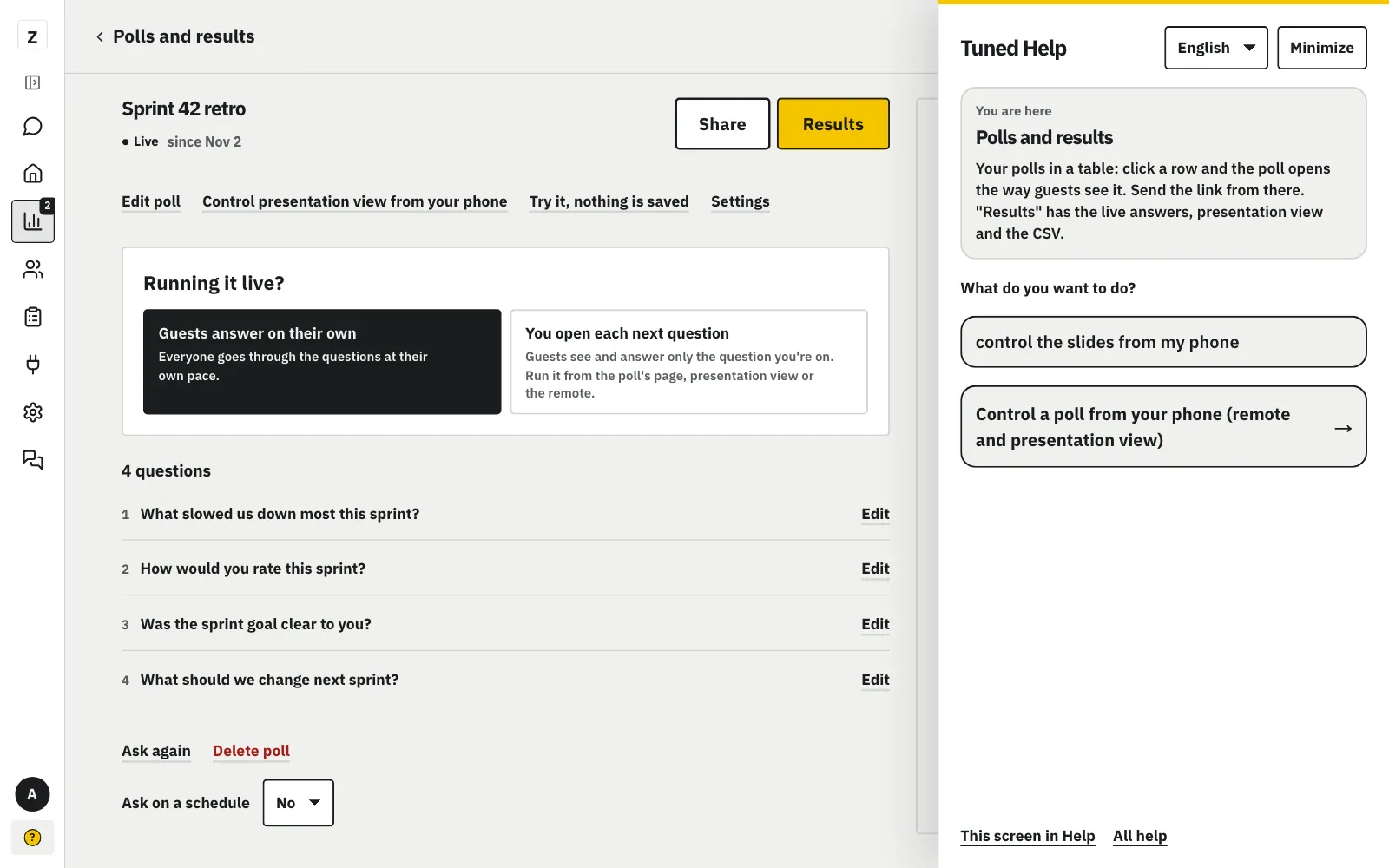
Want to see what you can do here? Click “Tuned Help” at the bottom of the left menu and type what you want to do.
MoreLess: Click “Tuned Help”
“Tuned Help” is at the bottom of the left menu; with the menu folded it is the “?” icon below your avatar. The panel opens on the right. On pages without the menu (e.g. the code slips) the button is in the bottom right corner. Type what you want to do, e.g. “control the slides from my phone”, or pick from the list.
Pick a task under “On this screen” and Tuned Help lights up the right spot.
MoreLess: Tips for the screen you are on
The top of the panel shows where you are and what this screen is for. In the poll editor each step (e.g. “Step 2 of 5”) has its own tips. Under “On this screen” is what you can do here: click one and Tuned Help lights up the right spot. Below are “More” and a link to the help about this screen.
Click the button with the blue frame and the guide moves on by itself.
MoreLess: Click the lit buttons
The button to click has a blue frame, with a note next to it. Clicking it moves to the next step. If you're already further on, the guide skips ahead.
“Next” and “Back” move between steps, “Stop” ends the guide at any time.
MoreLess: Click “Next” or “Stop”
The note shows which step you're on (e.g. “Step 4 of 5”). “Next” goes to the next one, “Back” goes back. On the last step, click “Got it, thanks”. “Stop” ends the guide at any time.