For companiesOn a computer
On a computerPoll looks
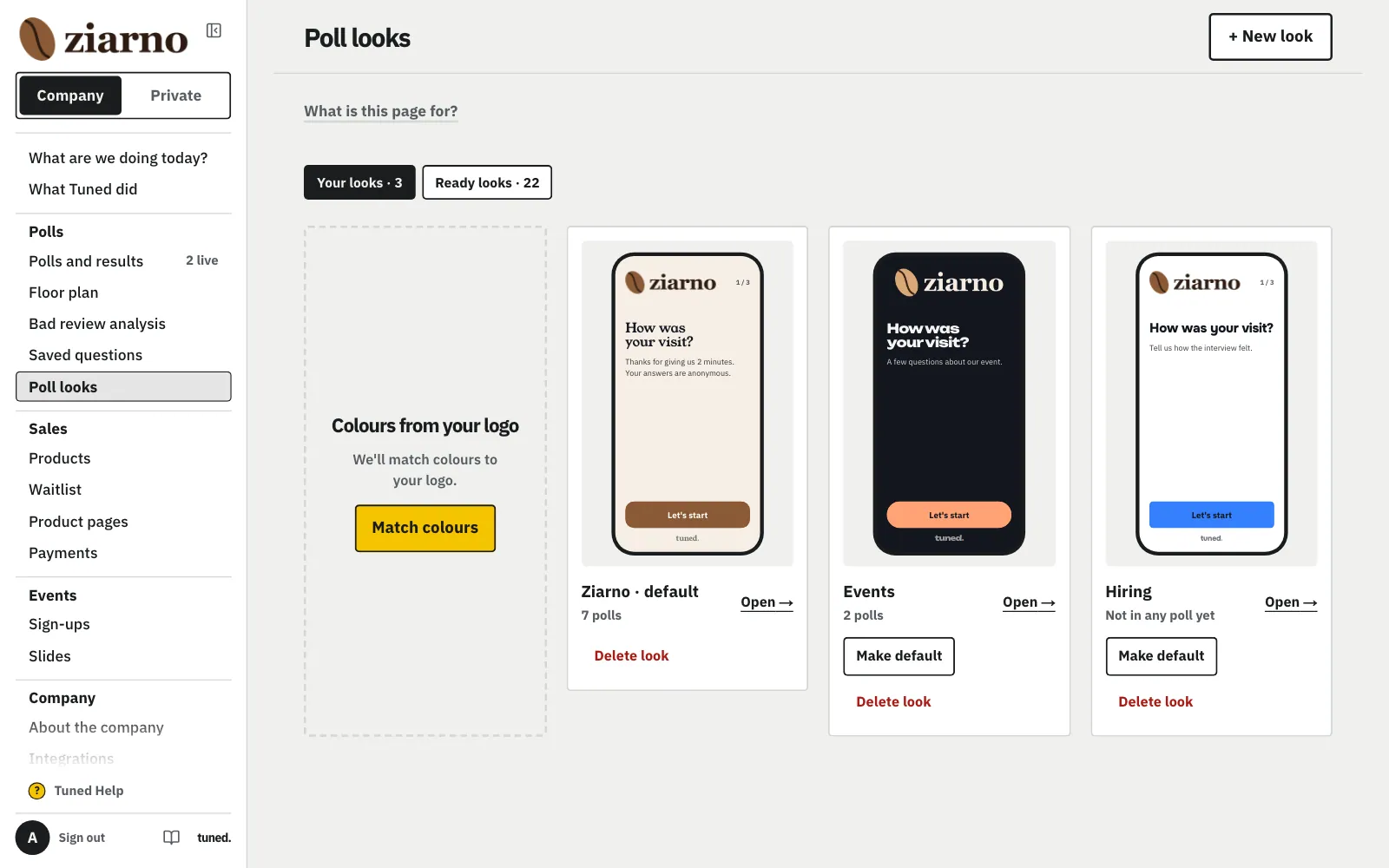
A poll in your colours: main colour, background, font, welcome and thank-you screens.
Steps
Ready looks are in the “Ready looks” tab, and the “A look from one sentence” card makes three looks in your company's colours.
MoreLess: Start from a ready style
The “Ready looks” tab holds fourteen ready looks (Calm, Event, Clean… Neon, and for businesses Bistro, Black and white, Magazine, Pastel, Elegant, Fresh and Warm room: a wall of wooden slats in the main colour's light, like a restaurant). Neon makes the main colour glow like a neon tube on a dark brick wall; in “Colours and logo”, under “Effect”, you can turn it on with any colour. “Yours” has the “A look from one sentence” card: say what it should be like (e.g. “elegant, serif, burgundy and sky blue”) and click “Make 3 looks”. Colours come from the sentence, your logo and your company colours; the font from words like serif, modern, handwritten. The three looks start the welcome differently: big logo, headline only, centred logo. None becomes the default; open the one that fits and fix the details. An empty sentence gives your logo's colours alone. Your AI assistant can do the same over MCP (`create_looks`). After you upload a new logo, Tuned makes three looks in its colours by itself in the morning; at the bottom of Studio, under “What Tuned does by itself”, you see them first, switch it off there, and remove them in one click afterwards. At the top, on a computer, you see the guest's screens in each look. Click a card to change the look.
Set the colours, font and buttons, and we make sure everything stays readable.
MoreLess: Look
The logo comes first, then main colour and background. “More colours” sets the text, question, answer background, picked answer, button text and progress bar; below it you pick the font (19 of them: 3 change the headings, the others cover the guest screen) and button shape. We keep an eye on contrast: each colour shows its ratio, and for low contrast it warns and suggests “Fix” (a darker or lighter shade of the same colour, shown before you click) or a different background. Your colour saves even without the fix. “Button text” puts your own words in place of “Next” and “Send”. “Back to the ready look” undoes them, “Undo” brings it back for a few seconds. “Large text” makes the letters bigger and the grey text darker, for older guests. On a phone the preview sits above the settings.
Collect the company's colours once and have them at hand in every look.
MoreLess: Your colours
In “Colours and logo”, above the main colour, is “Your colours”. “Pick a colour from the screen” (Chrome and Edge on a computer) takes a colour from anywhere on the screen, even outside the browser. “Paste a screenshot or upload a file”: paste an image (Ctrl+V), drag it in or choose a file, such as a logo, a moodboard or a screenshot of a page; Tuned shows up to 8 colours and you tick the ones to keep. Images are read only in your browser and never sent anywhere. “Type a colour” takes HEX (#1d3557) or R G B (29 53 87). Your colours are shared by all the company's looks and sit next to the main colour, the background and every element colour. Contrast is checked as for any colour: a weak one warns, but still saves.
Upload a client's logo to one look, and its polls show it instead of your company logo.
MoreLess: Client logo
Under “Logo” you can upload a logo for this look only, e.g. a client's logo at their conference. Polls with this look show it instead of the company logo: on the guest's phone, in presentation view, on the slides and on the poster. The company logo stays as it is, and you upload it only in the Logo tab. Below it is a second slot, “Version for dark backgrounds”: upload the light version of the logo and a dark look (e.g. Evening) shows it straight on the background. Without it the logo sits on a light plate on dark backgrounds. With no logo here, polls use both company logos, including the dark-background version from the Logo tab. “Back to the company logo” removes both versions of this logo. The Logo section is at the top of “Colours and logo”.
Choose what guests see as a welcome, on each question and as a thank-you.
MoreLess: Guest screens
Set up the welcome, the question screen and the thank-you. On the welcome you can add a “Photo to start with”: guests see it at the top, above the heading (your place, people, product). You also pick the welcome's animation, on the thank-you up to two goodbye animations (the same as in “Colours and logo”). At the end you can add a button with a link.
Set the look as the default and every new poll will use it.
MoreLess: Use it in a new poll
The look saves itself, also in running polls. If something goes wrong, “Restore” next to the save state brings back the look from when you opened it, and “Undo restore” reverses that once. Set it as the default, and every new poll will use it. You confirm a delete on its card.